
UX Tasarımcıları için AI Araçları: Gerçek İş Akışlarını Hızlandıran 12 Seçim
UX Tasarımcısının Zaman Kaçağı: Yapay Zeka Araçları Gerçekten Nerede Saatler Kazandırır (Sadece Hype Değil)
Saat gece 11. Wireframe'lerin yarın teslim. Geliştirme ekibi Cuma'ya kadar üç ağırlık istediği için 47. ikon varyantının gölgesini elle ayarlıyorsun ve Notion belgende bir yerlerde 400 vurgulanmış görüşme alıntısı bir araştırma özetine dönüşmeyi bekliyor. İşte tam da bu an ux tasarımcıları için yapay zeka araçlarının önem kazanmaya başladığı andır — bir verimlilik hilesi olarak değil, zamanında teslim etmekle bir hafta sonunu daha yakmak arasındaki fark olarak.
Vaat gerçek, ama hype'ın öne sürdüğünden daha dar. Ambalaj ve tasarım ajansı Awesomic'e göre, Figma ve Framer gibi yapay zeka destekli tasarım araçlarını benimseyen ekipler tasarım işinin %40'a kadar hızlandığını ve revizyonların %60 azaldığını bildiriyor. Laboratuvarda doğrulanmamış satıcı kıyaslamaları — ama çalışan tasarımcıların söyledikleriyle yön olarak tutarlı. Dürüst çerçeve: Yapay zeka yaratıcılığın yerini almaz. Tekrarlayan üretim işine harcadığın haftada ~15 saati ortadan kaldırır, böylece asıl işe daha fazla zaman ayırabilirsin.
Bu yazı, beş kategoride 12 aracı ele alıyor — varlık üretimi, araştırma sentezi, tasarım sistemi dokümantasyonu, prototipleme ve erişilebilirlik denetimi — artı 30 gün içinde bırakacağın aboneliklerde boğulmanı engelleyecek değerlendirme çerçevesi.
İçindekiler
- UX Tasarımcısının Zaman Kaçağı: Yapay Zeka Araçları Gerçekten Nerede Saatler Kazandırır
- Abone Olmadan Önce Yapay Zeka Tasarım Araçlarını Değerlendirmek İçin 5 Kriterli Çerçeve
- İkon ve Varlık Üretimi: Görsel Üretimi %60+ Azaltan 4 Yapay Zeka Aracı
- Kullanıcı Araştırması Sentezi: 400 Görüşme Notunu Bir Saatten Kısa Sürede Temalara Dönüştüren 3 Yapay Zeka Aracı
- Tasarım Sistemi Dokümantasyonu: Spesifikasyonlarınızı Eskimekten Koruyan Yapay Zeka Araçları
- Prototipleme ve Tasarımdan-Koda: Günlerce Süren Bağlantı İşini Dakikalara Sıkıştıran Yapay Zeka Araçları
- Hızlı Kazanımlar Kontrol Listeniz: Gerçek Darboğazınıza Göre Bir Araç Seçin
- UX Tasarımcıları İçin Yapay Zeka Araçları Hakkında Sıkça Sorulan Sorular
UX Tasarımcısının Zaman Kaçağı: Yapay Zeka Araçları Gerçekten Nerede Saatler Kazandırır (Sadece Hype Değil)
ux tasarımcıları için yapay zeka araçları hakkında herhangi bir derlemeyi açtığınızda, "iş akışınızı dönüştürecek" iddiasında bulunan 40'tan fazla ürünle karşılaşırsınız. Çoğu bunu yapmaz. Yapanlar belirli bir darboğaza saldırır — ve darboğazlar tek başına çalışan kurucular, kurum içi ürün ekipleri ve serbest çalışan tasarımcılar arasında dikkat çekici derecede tutarlıdır.
İşte zaman kaçağı denetimi. Yapay zekanın bugün ölçülebilir ROI sağladığı beş iş kategorisi. Darboğazınız bu listede yoksa, hiçbir araç bunu düzeltmez — bir araç sorununuz değil, bir süreç sorununuz var.
- Varlık Üretimi (İkonlar, İllüstrasyonlar, UI Varyasyonları): Tasarımcılar genellikle haftada 5-8 saati ikon varyantları, spot illüstrasyonlar ve düzen alternatifleri üretmek için harcar. Midjourney, Adobe Firefly ve Figma'nın yerel yapay zekası gibi araçlar bunları dakikalar içinde toplu olarak üretebilir. Figma'nın kendi kaynak kütüphanesi, tuval içi üretimi 2026 iş akışları için temel bir gereksinim olarak konumlandırıyor.
- Kullanıcı Araştırması Sentezi: Sekiz adet 30 dakikalık kullanıcı görüşmesi kabaca 400 not üretir. Manuel kodlama ve tema çıkarımı genellikle 6+ saat alır. Ürün tasarım ajansı Eleken'in araştırma ve analitiği kapsayan 40 UX yapay zeka aracına dair genel bakışına göre, yapay zeka araştırma araçları temaları kümeler ve duygu durumunu bir saatten kısa sürede ortaya çıkarır.
- Tasarım Sistemi Dokümantasyonu: Bileşen spesifikasyonları, token dışa aktarımları ve devir teslim açıklamaları sürekli güncel değildir. Yapay zeka araçları spesifikasyonları otomatik olarak çıkarır ve dokümantasyon üretir, yoğun ürün ekipleri için haftada tahmini 5-10 saat geri kazandırır — bu, kontrollü bir çalışma değil, Guideflow tarafından derlenen satıcı iddialarından türetilen bir rakamdır.
- Prototipleme ve Etkileşim Spesifikasyonları: Animasyonlu geçişleri ve durum akışlarını manuel olarak bağlamak ekran başına saatler alır. UX Pilot'a göre, yapay zeka iskelet araçları çalışan prototipleri "saatler yerine dakikalar içinde" üretir — kullanışlı bir yetenek iddiası, her zamanki uyarıyla birlikte: "dakikalar" makul ölçüde yapılandırılmış bir başlangıç dosyası varsayar.
- Erişilebilirlik ve Dikkat Denetimi: Lansman öncesi kontrast kontrolleri, WCAG denetimleri ve dikkat ısı haritaları eskiden üçüncü taraf laboratuvarlar gerektirirdi. Interaction Design Foundation, kullanıcıların bir düzeni nasıl tarayacağını tahmin eden bir yapay zeka analitik aracı olan Attention Insight'ı öne çıkarıyor; bu, katılımcı toplamadan görsel hiyerarşinin ön testini yapmayı sağlıyor.
Ana çizgi herhangi bir bireysel araçtan daha önemlidir. Nielsen Norman Group'un ortak kurucusu Don Norman, on yıllardır insan merkezli tasarımın insanları ve bağlamları derinlemesine anlamakla ilgili olduğunu savunuyor — tam olarak otomatikleştirilemeyecek bir iş. Yapay zekanın rolü, bu düşünmeyi geciktiren angaryayı ortadan kaldırmak, tasarımcıların üretim işini otomatikleştirmeye, problem çerçeveleme, etik ve sistem kararlarına daha fazla zaman ayırmasını sağlamaktır. Aşağıdaki araçlar tam da önemli olan işi yapıyormuş gibi davranmadıkları için kullanışlıdır.
En hızlı tasarım, elle yapmak zorunda olmadığınız tasarımdır. Yapay zeka zevkinizin yerini almaz — onu geciktiren angaryayı ortadan kaldırır.
Abone Olmadan Önce Yapay Zeka Tasarım Araçlarını Değerlendirmek İçin 5 Kriterli Çerçeve
Herhangi bir satıcı sunumundan önce bir filtre uygulayın. UX Pilot'un analizi bu konuda açık sözlü: günlük çalışmaya entegre edilecek kadar güvenilir olan yalnızca "birkaç" yapay zeka aracı vardır ve ayrım gözetmeden benimsemek araç yayılmasına, bağlam değiştirmeye ve kayıp zamana neden olur. Çoğu tasarımcının 12 aboneliğe ihtiyacı yoktur. Gerçekten fark yaratan ikisine ihtiyaçları vardır.
Bu beş kriter, çalışan tasarımcıların araçları gerçekte nasıl değerlendirdiğinden — özellik kontrol listelerinden değil, ROI sorularından — sentezlenmiştir.
| Kriterler | Neden Önemli | Dikkat Edilecek Uyarı İşareti |
|---|---|---|
| Entegrasyon derinliği | Bağlam değiştirmek momentumu öldürür. Figma-yerel eklentiler akışı korur. | Araç manuel dosya dışa aktarımı, ardından düzenleme sonrası yeniden içe aktarım gerektirir. |
| Marka tutarlılığı uygulaması | Yapay zeka çıktıları varsayılan olarak jenerik SaaS estetiğine döner. Token'larınızı öğrenen araçlar marka dışı sapmayı önler. | Çıktılar yüklenen marka varlıklarını veya renk token'larını yok sayar. |
| Çıktı kalitesi tabanı | Aracın üretime hazır mı yoksa başlangıç taslağı mı olduğunu belirler. %80+ yeniden çalışma = size zaman maliyeti. | Üretilen varlıklar teslim öncesi rutin olarak tam yeniden tasarım gerektirir. |
| Öğrenme eğrisi vs. kazanç | Ustalaşması 20 saat süren bir aracın değerli olması için yılda 40+ saat kazandırması gerekir. | Ücretli sertifika veya çok saatlik eğitim serisi gerektirir. |
| Kazandırılan saat başına maliyet | ROI matematiği olmadan aylık 99 $ anlamsızdır. Kazandırılan saat başına 30 $ üzerindeki her şey şüphelidir. | Satıcının zaman tasarrufu kıyaslaması veya vaka çalışması yoktur. |
Çözümlenmiş bir örnek üzerinden gidelim. Yapay zeka iş akışlarını değerlendiren tek başına bir kurucu, aylık 30 $'lık bir yapay zeka illüstrasyon aracını düşünüyor. Ayda 4 saat kazandırırsa — diyelim ki başka türlü 150 $'a dışarıya yaptıracakları bir illüstrasyon işi — ROI basittir. Ayda 30 dakika kazandırırsa, etkin oran yaklaşık saatte 60 $'dır. Yardım almaktan daha kötü. Kazandırılan saat başına maliyet matematiği, herhangi bir özellik karşılaştırmasından daha fazla kötü aboneliği öldürür.
Marka tutarlılığı kriteri fazladan ağırlığı hak ediyor. Eleken, birçok yapay zeka tasarım çıktısının "görsel olarak benzer ve şablon güdümlü" görünmesinin nedeninin, örtüşen veri kümeleriyle eğitilen araçların örtüşen estetik üretmesi olduğu konusunda uyarıyor. Yakınsama sorunu gerçek. Yüklenen stil referansları, marka kitleri veya eğitilmiş özel modeller olmadan, her yapay zeka tarafından üretilen illüstrasyon aynı gradyan-ve-izometrik görünüme doğru kayar. Girdileri agresif bir şekilde kısıtlayın ya da jenerik çıktıları kabul edin.
Entegrasyon derinliği her şeyi bir araya getirir. Figma'nın 2026 yapay zeka derlemesi, tam olarak bağlam içi üretimin artık ayırt edici olması nedeniyle Figma Make ve Stitch gibi Figma-yerel araçlara büyük ölçüde yaslanıyor. Bir çerçeveyi dışa aktarmanızı, başka yerde üretmenizi, ardından yeniden içe aktarmanızı gerektiren bir araç, dosyanızın içinde yaşayan bir eklentiye karşı ROI yarışını çoktan kaybetmiştir.
İkon ve Varlık Üretimi: Görsel Üretimi %60+ Azaltan 4 Yapay Zeka Aracı
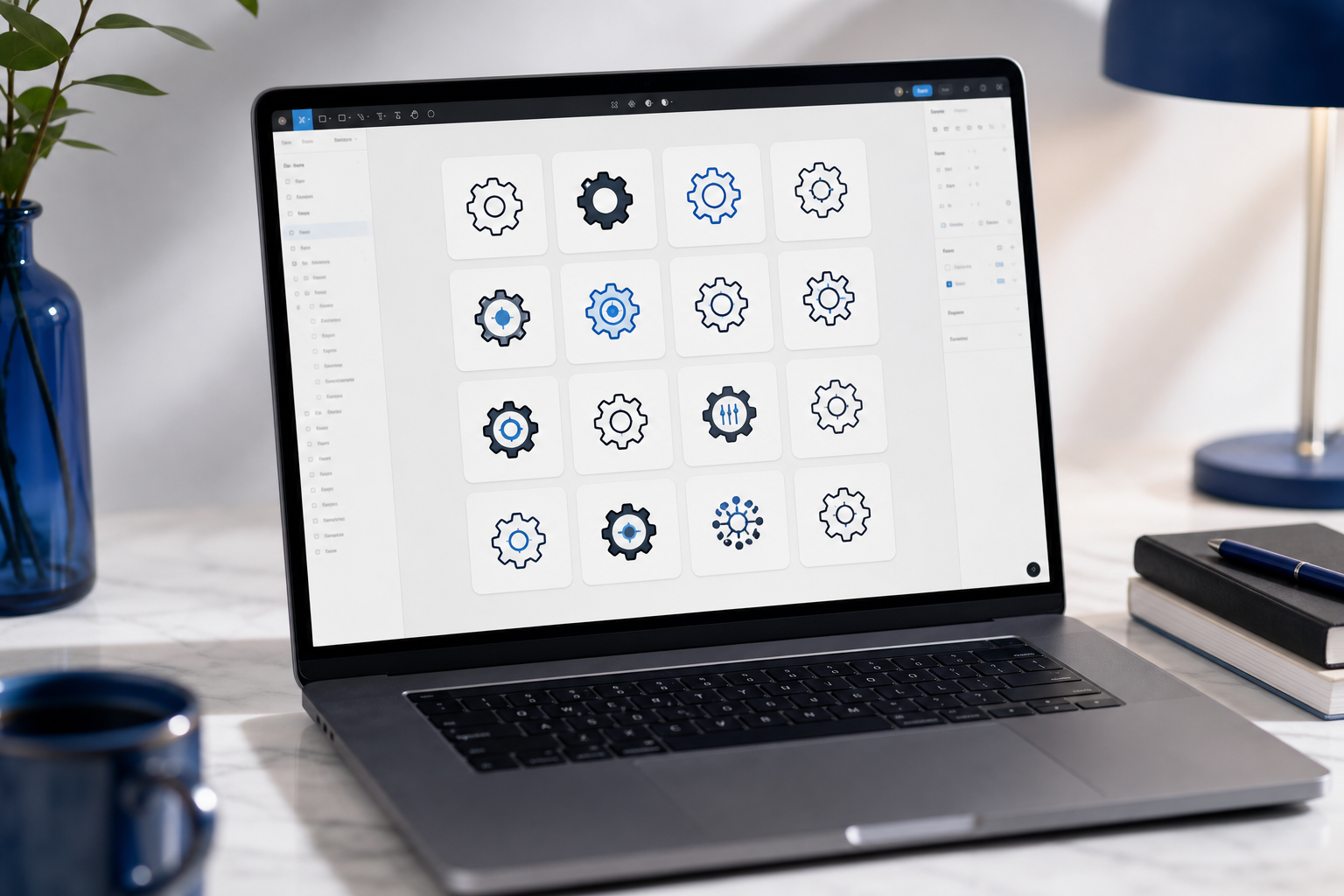
Tipik bir tasarım sistemi, birden fazla ağırlık ve durumda 100-300 ikona ihtiyaç duyar. Manuel olarak 200 ikon × 3 ağırlık varyasyonu üretmek = günlerce odaklanmış çalışma. Yapay zeka bunu toplu yapar.
Aşağıdaki dört araç gerçekçi spektrumu kapsar: bağımsız güç, marka-güvenli ticari kullanım, özel model eğitimi ve tuval içi entegrasyon. Fiyatlandırma yayın tarihi itibarıyladır ve değişebilir.
| Araç | En İyi Kullanım | Entegre Olduğu | Başlangıç Fiyatı | Marka Kontrolü |
|---|---|---|---|---|
| Midjourney | Konsept illüstrasyonları, hero görselleri, toplu varyasyonlar | Bağımsız → manuel dışa aktarım | 10 $/ay temel | Orta — stil referansları ve prompt sabitleme |
| Adobe Firefly | Yüklenen stil referansları aracılığıyla markaya uygun görseller | Adobe CC paketi, Figma eklentisi | 5 $/ay (CC ile) | Yüksek — marka kitleri, lisanslı eğitim verisi |
| Leonardo.AI | Yeniden kullanılabilir stil ön ayarları, özel UI varlıkları | Bağımsız + Figma dışa aktarım | Ücretsiz katman; ücretli ~10 $/ay'dan itibaren | Yüksek — özel model eğitimi |
| Figma Make / Figma AI | Tuval içi düzen ve varyant üretimi | Yerel Figma | Figma ücretli plana dahil (~15 $/editör/ay) | Yüksek — dosyanızın içinde çalışır |
Fiyat aralıkları Guideflow'un ücretsiz-vs-ücretli analizinden alınmıştır.
Üç senaryo araç seçimini bariz hale getirir.
Senaryo bir: "A/B testi için bir hero illüstrasyonunun 20 varyasyonuna ihtiyacım var." Midjourney kazanır. Bir kez prompt yazın, düzinelerce üretin, en iyi üçünü seçin. Tahmini süre: elle 4-6 saate karşılık yaklaşık 15 dakika. Uyarı: çıktıların üretime dokunmadan önce marka tutarlılığı incelemesi gerekir. Midjourney entegrasyon derinliğinde düşük puan alır — dışa aktarıp içe aktaracaksınız — ama yaratıcı aralıkta yüksektir.
Senaryo iki: "Bir pazarlama sitesi için 30 markaya uygun ürün spot illüstrasyonuna ihtiyacım var." Marka kiti yüklemesiyle Adobe Firefly veya eğitilmiş özel modelle Leonardo.AI. Firefly'ın ticari güvenli eğitimi burada önemlidir çünkü Adobe Stock üzerinde eğitildi, bu da müşteri işi için IP riskini azaltır. Tutarlı bir marka kimliği oluşturuyorsanız, bu yasal incelemeden geçebilecek yoldur.
Senaryo üç: "Bir gösterge panosu üzerinde yineleme yapıyorum ve bir kart bileşeninin 8 varyasyonuna ihtiyacım var." Figma Make entegrasyon derinliğinde kazanır. Dosya içinde kalırsınız, üretimler doğrudan tuvale iner, dışa/içe aktarma sürtünmesi olmaz. Estetik hırs Midjourney'inkinden düşüktür, ama bileşen düzeyindeki iş için bu doğru takas.
Senaryoları 2. Bölüm çerçevesine geri bağlayın. Midjourney entegrasyon derinliğinde düşük ama yaratıcı aralıkta yüksek puan alır. Figma Make entegrasyonda yüksek ama estetik hırsta daha düşük puan alır. Adobe Firefly her ikisinde de ortayı vurur ve ticari lisanslamanın eklenen faydasını sağlar. Tek bir kazanan yok — her iş için doğru araç var, kendi özel kriterlerinize göre seçilmiş.
Awesomic'in %40/%60 kıyaslaması en görünür şekilde burada ortaya çıkar. Figma ve Framer yapay zeka özelliklerini benimseyen ekipler bu sayılara öncelikle azaltılmış varlık yeniden çalışmasıyla ulaşır. Ama Eleken'in karşı kanıtı bu kategoride en sert şekilde geçerlidir: stil referansları veya eğitilmiş modeller olmadan, her yapay zeka illüstrasyonu aynı yakınsak estetiğe doğru kayar. Araçlar güçlü. İyi çıktıyı jenerik gürültüden ayıran şey kısıtlama disiplinidir.
Kullanıcı Araştırması Sentezi: 400 Görüşme Notunu Bir Saatten Kısa Sürede Temalara Dönüştüren 3 Yapay Zeka Aracı
Her biri 30 dakika olan 8 kullanıcı görüşmesi yaparsınız. Bu 4 saatlik kayıt, kabaca 400 not ve geleneksel olarak 6+ saatlik manuel sentez demektir — temaları kodlamak, bir Miro panosunda kümelemek, araştırma özetini yazmak. Sentez adımı, yapay zekanın zaman çizelgesini çökerttiği yerdir.
Eleken, yapay zeka araştırma araçlarını açıkça otomatik tema ve özet oluşturucular olarak çerçeveler. Aşağıdaki "6 saatten yaklaşık 45 dakikaya" kıyaslaması, kontrollü bir çalışma değil, satıcı yetenek açıklamalarından pratik bir iş akışı çıkarımıdır. Bunu ortalama değil, gerçekçi tavan olarak ele alın.
Adım 1 — Yakala ve Otomatik Yazıya Dök. Araçlar: Otter.ai, Fireflies.ai, Grain. Oturumu Zoom, Meet veya yüz yüze kaydeder ve oturum bitiminden dakikalar içinde konuşmacı etiketli transkriptler üretir. Doğruluk, minimal aksan varyasyonu olan net ses için genellikle %90+'dır. Kazanılan zaman: görüşme başına yaklaşık 1-2 saatlik manuel yazıya dökme işini ortadan kaldırır.
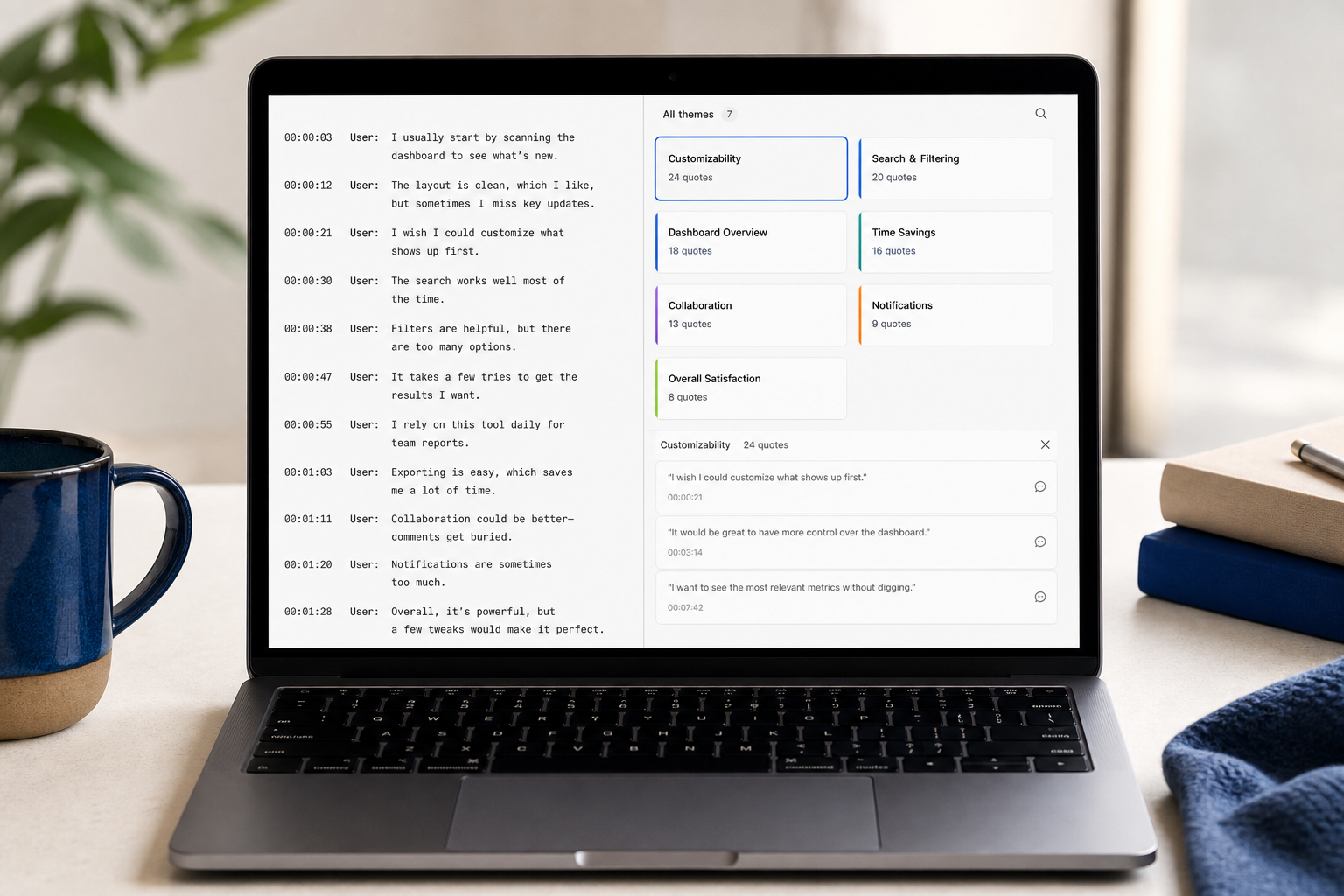
Adım 2 — Temaları ve Duyguları Kümele. Araçlar: Dovetail AI, Reduct.video, UserTesting AI. Transkriptleri alır, tekrarlayan ifadeleri ortaya çıkarır, temaya göre kümeler, duyguyu etiketler. Çıktı, bağlantılı alıntı kanıtları olan gezilebilir bir tema haritasıdır. 400 not üzerinde manuel yakınlık diyagramı yapmak yaklaşık 4-6 saat alır. Yapay zeka taslak temaları kabaca 10-20 dakikada ortaya çıkarır — yine de doğrular ve iyileştirirsiniz. Yapay zeka sizi güvenilir bir v1'e getirir, nihai bir özete değil.
Adım 3 — Araştırma Özetleri Oluştur. Araçlar: Yapılandırılmış prompt'larla ChatGPT veya Claude; Dovetail'in rapor oluşturucusu. Kümelenmiş temaları alır ve paydaşlara hazır özetler üretir — problem ifadeleri, kanıt alıntıları, önerilen sonraki adımlar. 5 sayfalık bir araştırma özetini manuel yazmak 2-3 saat sürer. Yapay zeka kullanılabilir bir versiyonu yaklaşık 15 dakikada taslaklar. Nüans, anlatı ve modelin göremeyeceği politik alt metin için düzenlersiniz.
Adım 4 — Dikkat Yapay Zekası ile Doğrulamayı Öne Al. Araçlar: Attention Insight, VisualEyes. Kullanıcıların bir düzende nereye bakacağını tahmin etmek için göz izleme verileri üzerinde eğitilmiş modeller kullanır. Katılımcı toplamadan ısı haritaları üretir. Geleneksel yönetilen bir dikkat çalışması 2-3 hafta sürer. Yapay zeka ısı haritaları dakikalar içinde çalışır. Bir yerine geçme değil, bir ön test olarak kullanın.
Gerçek bir akışta yürüyelim. Pazartesi: Otter transkriptleri otomatik olarak yakalarken Zoom aracılığıyla 8 görüşme kaydedildi. Salı sabahı: transkriptler otomatik oluşur, bunları Dovetail'e aktarırsınız. Öğle yemeğine kadar yapay zeka 400 nottan 9 aday temayı kümelemiştir. Kümeleri doğrulamak, kopyaları birleştirmek, yapay zekanın kaçırdığı nüansı eklemek için kabaca 90 dakika harcarsınız — genellikle motivasyon, bağlam ve kullanıcıların söyledikleri ile yaptıkları arasındaki çelişkili sinyaller etrafında. Salı öğleden sonra: ChatGPT doğrulanmış temalardan bir taslak araştırma özeti üretir. Açılış çerçevesini ve önerileri yeniden yazarsınız çünkü bu bölümler bir modelin desen eşleştirmesini değil, sizin muhakemenizi gerektirir. Özet saat 16.00'da teslim edildi.
Eski akışla karşılaştırın: 2-3 tam gün sentez işi. Sıkıştırma gerçek. Püf noktası da gerçek.
Sekiz saatlik kullanıcı görüşmesi, on altı saatlik sentez gerektirmemeli. Yapay zeka desenleri ortaya çıkarır — sizin işiniz nedenini yorumlamaktır.
Bunu benimsemeden önce iki uyarı önemlidir. Birincisi, yapay zeka desenleri ortaya çıkarır ama nedenini kaçırır. Interaction Design Foundation'a göre, tahmine dayalı ısı haritaları "kullanıcıların nereye bakabileceğine yaklaşır ama kullanıcıların neden öyle davrandığını ortaya koyamaz." Tasarımcılar hâlâ bağlamı ve motivasyonu yorumlar — bu indirgenemez iştir. İkincisi, veri gizliliği. Kullanıcı kayıtlarını üçüncü taraf yapay zekaya yüklemek, özellikle GDPR kapsamında, açık rıza ve satıcı veri politikalarının incelenmesini gerektirir. Katılımcılarınız seslerinin ve görüntülerinin yapay zeka işlemesine razı olmadıysa, bu veriyi yasal olarak Dovetail veya Otter'a besleyemezsiniz. Rızayı sonradan akla gelen bir şey olarak değil, görüşme senaryonuza dahil edin.
Tasarım Sistemi Dokümantasyonu: Spesifikasyonlarınızı Eskimekten Koruyan Yapay Zeka Araçları
Çoğu ekip bir tasarım sistemi teslim eder, sonra dokümantasyonun altı ay içinde çürümesini izler. Bileşenler evrilir. Token'lar yeniden adlandırılır. Kimse dokümanları güncellemez çünkü doküman işi faturalandırılamaz. Dokuzuncu aya gelindiğinde tasarım sistemi sayfanız kurgudur. Yapay zeka araçları buna, spesifikasyonları doğrudan kaynağın gerçekliğinden — Figma dosyasından — otomatik olarak çıkararak saldırır.
Haftada 5-10 saat geri kazanılan tahmini, kontrollü bir kıyaslama değil, satıcı iddialarından ve yaygın sektör iş yüklerinden türetilmiştir. Bunu bir garanti değil, orta ölçekli bir ürün ekibi için savunulabilir bir üst sınır olarak ele alın.
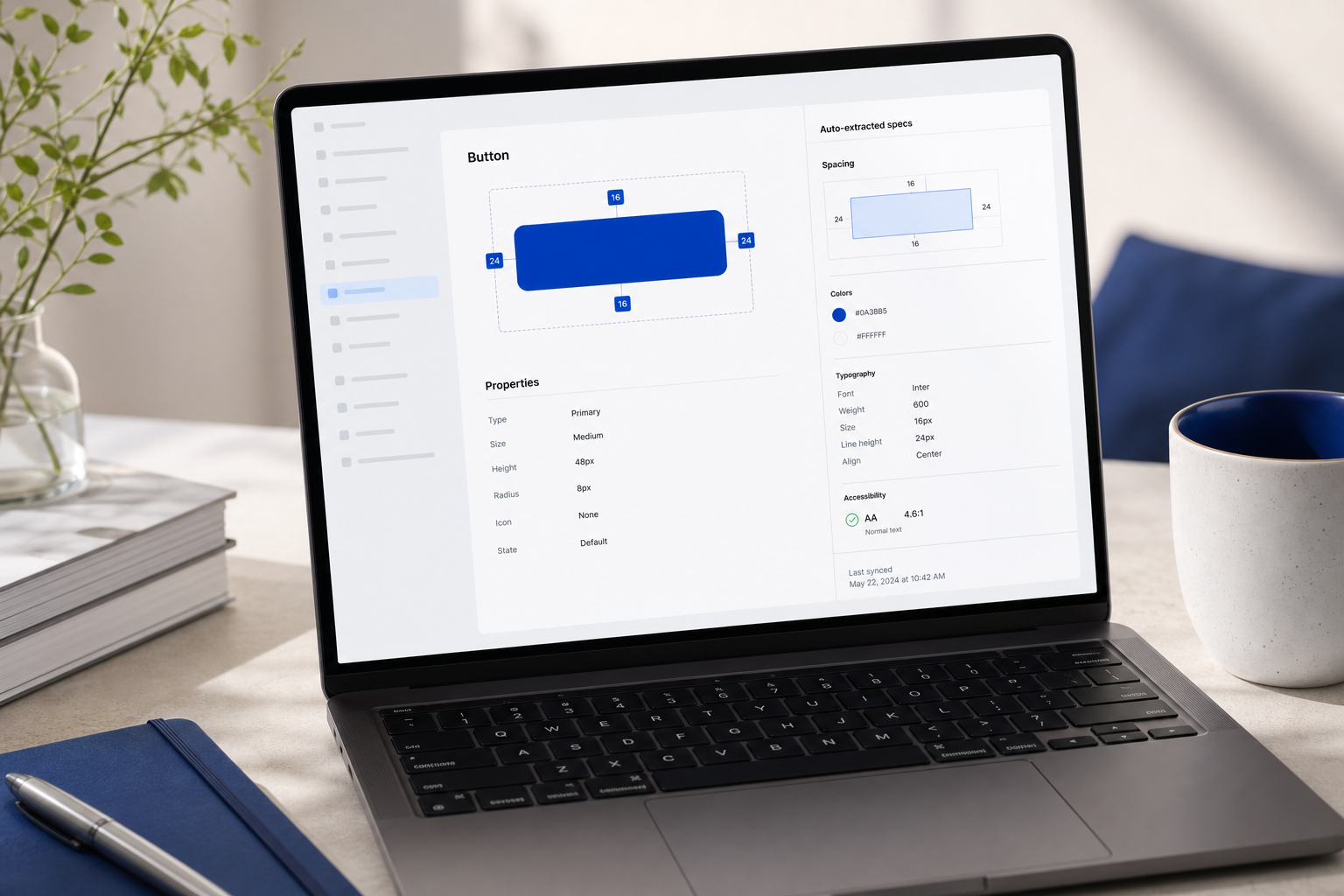
- Bileşen Spesifikasyonlarını Otomatik Çıkarma (Zeroheight, Supernova): Bu araçlar Figma dosyanıza bağlanır ve boyutları, renk token'larını, tipografi spesifikasyonlarını ve boşluk değerlerini gezilebilir bir doküman sitesine otomatik olarak çeker. Tasarımcılar kaynak bileşeni güncellediğinde, dokümanlar otomatik olarak yenilenir. Sistem her evrildiğinde 8-12 saatlik sapma döngüsünü ortadan kaldırır. Birden fazla tasarımcının sisteme dokunduğu ve tutarsızlığın hızla katlandığı 5+ kişilik ekipler için en iyisi.
- Manuel Denetimler Olmadan Erişilebilirlik Etiketleme (Stark, Accessibility Checker eklentileri): Yapay zeka güdümlü erişilebilirlik araçları, WCAG ihlalleri için Figma dosyalarını tarar — W3C WCAG 2.1/2.2 standartlarına göre normal metin için 4.5:1 minimum ve büyük metin için 3:1 altındaki kontrast oranları, eksik alt metin açıklamaları, odak sırası sorunları. Sorunları işaretler ve teslim öncesi düzeltmeler önerir, sorunları lansman sonrası yükümlülük veya erişilebilirlik davalarına dönüşmeden önce yakalar.
- Tasarımdan-Geliştirmeye Devir Teslim İçin Token Üretimi (Tokens Studio + yapay zeka prompt'ları): Yapay zeka destekli token araçları, tasarım kararlarını platformdan bağımsız JSON veya CSS değişkenleri olarak dışa aktarır. Modern araçlar, token'ları platformlar arası tutarlılık için yapılandırır — renkler, tipografi, boşluk, yarıçaplar — geliştiricilerin doğrudan kullanabileceği primitifler olarak sunulur. Yapılandırılmış bir prompt'tan token dokümantasyonu, adlandırma gerekçesi ve kullanım kılavuzlarını otomatik oluşturmak için ChatGPT ile eşleştirin.
- Varyant ve Durum Dokümantasyonu: Yapay zeka araçları bir bileşen setini tarayabilir ve hangi durumların var olduğunu (varsayılan, üzerine gelme, devre dışı, hata, yükleme) otomatik olarak belgeleyebilir ve her biri için kullanım rehberi oluşturabilir. Geliştiricilere üç çelişkili Slack konusu yerine tek bir gerçeklik kaynağı vermek için devir teslim platformlarıyla iyi eşleşir.
Buradaki asıl ROI estetik değil — örgütseldir. Güncel kalan belgelenmiş bir tasarım sistemi, geliştiricilerin tasarımcılara "bu kartın dolgusu nedir?" sorularıyla dürtmeyi bırakması anlamına gelir. QA'nın tahmin etmek yerine bir spesifikasyona karşı doğrulayabilmesi anlamına gelir. Yeni ekip üyelerinin teslim edilen kodu tersine mühendislik yapmak yerine doğru referanslara karşı işe başlaması anlamına gelir.
Zaman geri kazanımını somut olarak tahmin edin. Yoğun bir ürün ekibindeki bir tasarımcı, spesifikasyon güncellemeleri, erişilebilirlik kontrolleri ve devir teslim Soru-Cevabı için kolayca haftada 5 saat harcar. Yapay zeka araçları bunu kabaca bir saate indirir. Bir yıl boyunca bu, gerçek tasarım işine yönlendirilen yaklaşık 200 saat demektir. Sıfırdan inşa eden küçük bir ekip için, bileşik etki daha da büyüktür çünkü her dokümantasyon boşluğu sistem büyüdükçe çarpar.
Kabul edilmesi gereken karşı kanıt. Otomatik oluşturulan dokümanlar hâlâ "hangi bileşeni ne zaman kullanacağınız" etrafında insan yazımı bir anlatı ve tasarım gerekçesi gerektirir. Yapay zeka ne'yi çıkarır. Tasarımcılar hâlâ nedeni yazar. Eleken'in şablon güdümlü çıktılar hakkındaki uyarısı burada da geçerlidir — ekibiniz otomatik oluşturulan dokümanları nihai olarak ele alırsa, teknik olarak doğru ama bağlamsal olarak boş, kimsenin gerçekten kullanmadığı dokümantasyonla sonuçlanırsınız.
Bunu değerlendirme çerçevesine geri bağlayın. Tasarım sistemi yapay zeka araçları entegrasyon derinliğinde ve kazandırılan saat başına maliyette en yüksek puanı alır. Estetik yaratıcılıkta en düşük puanı alırlar — ki bu sorun değil, çünkü iş bu değil. Yanlış kritere göre seçim yapmak, ekiplerin tam olarak tasarlandıkları işi yapan araçlar tarafından nasıl hayal kırıklığına uğradığıdır.
Prototipleme ve Tasarımdan-Koda: Günlerce Süren Bağlantı İşini Dakikalara Sıkıştıran Yapay Zeka Araçları
Geleneksel Figma iş akışlarında, ekranlar arasında 10 animasyonlu geçişi bağlamak — yumuşatma eğrileri, süreler, durum değişiklikleri — 4-6 saatlik odaklanmış çalışma alır. Bu prototiplerden üretim kodu üretmek mi? Temiz kaynak dosyalarla bile en az bir tam gün daha. Yapay zeka iskelet araçları her iki aşamayı da sıkıştırır, ancak sıkıştırma girdilerinizin bir karmaşa olmadığını varsayar.
UX Pilot'un çerçevesi doğrudan: yapay zeka tasarım araçları saatlerce manuel düzen ve bağlantıya karşı "hızlı bir wireframe çizebilir veya dakikalar içinde tam bir prototip oluşturabilir." Savunulabilir çıkarım: eskiden 3-4 saatlik manuel düzen alan şey, yapay zeka ile genellikle 20-30 dakikada iskelesi kurulabilir. Laboratuvar verisi değil — uygulayıcı düzeyinde tahmin.
Üç hızlandırma kategorisi alanı kapsar. Anima gibi Figma içi animasyon araçları sizi tasarım dosyanızda tutar ve etkileşim spesifikasyonları artı animasyonlu prototipler üretir, geliştirici devir teslim dokümantasyonuyla paylaşılabilir bir prototip çıkarır. Locofy.ai ve Builder.io gibi tasarımdan-koda platformları, Figma dosyalarını standart duyarlı uygulamaları (CSS Flexbox/Grid) izleyerek üretime hazır React, HTML/CSS veya bileşen tabanlı koda dönüştürür. Google Stitch ve Uizard gibi yapay zeka promptlu prototip üreticileri, erken aşama çalışması için Figma'yı tamamen atlar — bir özelliği düz dilde tanımlayın ve çalışan bir etkileşimli prototip alın. Interaction Design Foundation, "kaba fikirleri manuel kodlama olmadan çalışan ekranlara" dönüştürmesi için özellikle Uizard'ı öne çıkarıyor.
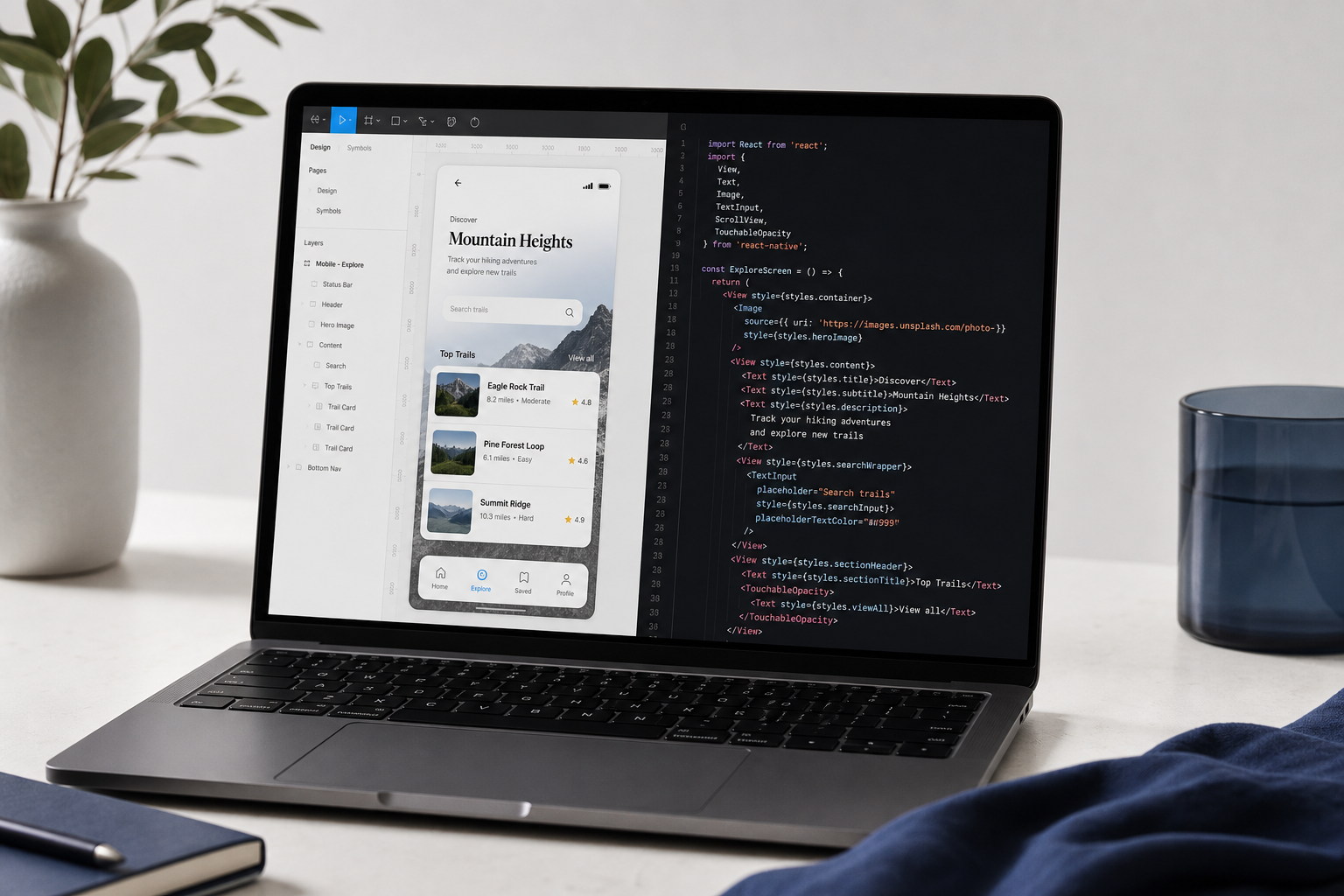
| Araç | Ürettiği | Çıktı Türü | En İyi Kullanım Durumu |
|---|---|---|---|
| Anima | Animasyonlu geçişler, hareket spesifikasyonları, geliştirici notları | Figma → etkileşimli prototip + spesifikasyon dokümanı | Geliştiriciye hazır etkileşim dokümanlarına ihtiyaç duyan olgun tasarım dosyaları |
| Locofy.ai | React, HTML/CSS, duyarlı bileşenler | Figma → üretime hazır kod deposu | Gönderilebilir koda ihtiyaç duyan ön uç kaynağı olmayan ekipler |
| Uizard / Google Stitch | Metin veya çizim prompt'larından tam ekranlar | Prompt → etkileşimli prototip | Figma sadakatine bağlanmadan önce erken aşama keşif |
Değerlendirme çerçevesine geri bağlayın. Anima entegrasyon derinliğinde kazanır — Figma'da yaşar — ama üretim kodu değil, ara katman üretir. Locofy çıktı bütünlüğünde kazanır ama temiz kod üretmek için daha temiz kaynak dosyalar gerektirir. Çöp girer, çöp çıkar burada en sert şekilde geçerlidir. Uizard ilk taslağa kadar hızda kazanır ama tasarım sadakati aşamasını tamamen atlar; bu, paydaş bağlamına göre bir özellik veya bir hata olabilir.
Daha büyük stratejik soru: Ne zaman prototip yapmalısınız? Kullanıcılarla bir akış konseptini test ediyorsanız, düşük sadakatli bir Uizard prototipi cilalı bir Figma dosyasını yener çünkü zaten testten sonra her şeyi değiştireceksiniz. Gönderilen bir özelliği teslim ediyorsanız, Anima veya Locofy elle yapılmış prototipleri yener çünkü spesifikasyon titizliği önemlidir ve belirsizlik hatalar yaratır.
On iki aracın hepsini benimsemeyin. En büyük zaman kaçağınızı çözeni benimseyin. Geri kalan her şey gürültüdür.
Karşı kanıtı görüş alanında tutmaya değer. Muzli'nin 2026 yapay zeka araçları derlemesinin arkasındaki tasarımcı Eldad, yapay zeka prototipleme araçlarını "tasarım ortakları" olarak çerçeveler — düzen ve desen üretimini üstlenirler, ancak tasarımcı hâlâ kullanılabilirlik ve marka uyumu konusunda muhakeme kararlarını verir. Üretilen prototipler başlangıç noktalarıdır, teslimatlar değil. Bu araçlardan en iyi şekilde gönderim yapan ekipler, yapay zeka çıktısını yere inmesi için %40 insan işine ihtiyaç duyan bir %60 taslak olarak ele alır. En kötü gönderim yapan ekipler çıktıyı nihai olarak ele alır.
Hızlı Kazanımlar Kontrol Listeniz: Gerçek Darboğazınıza Göre Bir Araç Seçin
Tasarımcıların yapay zeka araçlarıyla yaptığı en büyük hata bir kerede altısını birden benimsemektir. Her yeni aracın bir öğrenme eğrisi vardır. Her yeni abonelik maliyet ekler. Her yeni iş akışı bağlam değiştirme vergisi ekler. UX Pilot'un araç yayılması uyarısı doğru referanstır: yalnızca bir avuç araç günlük iş için yeterince güvenilird